Group Manager Utility
Important: Although hierarchies can be edited within the GRP service using GRP editors, this is strongly discouraged. Instead, use the Group Manager utility to create and edit group hierarchies.
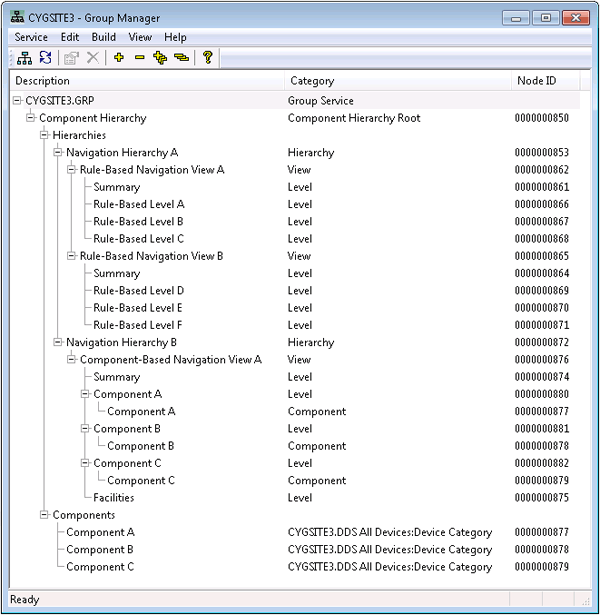
The Group Manager utility is used to define hierarchies. Each node in a displayed hierarchy serves a specific purpose. Some represent sources of data while others serve administrative purposes that define relationships between sources of data. Data sources are identified by facility and device attributes, and inclusion of these attributes into a hierarchy is defined by rules or components.
The Group Manager utility is stored in the CygNet\Utilities directory (GrpMgr.exe) on the host server.
64-bit Group Manager Utility
A 64-bit version of the Group Manager utility (GrpMgr64.exe) is also available. It can handle larger data sets associated with 64-bit services. Additionally, the Group Service may have more indexed items that can be handled by the 32-bit utility, even though the Group Service is a 32-bit compiled service. The 64-bit utility can be installed using the CygNet Client Installer: select Group Manager - 64-bit from the APPS/UTILS folder.
Starting the Group Manager Utility
Installing and Launching
To install and launch (start) the application or utility using version management:
- Use CygNet Client Installer to install and launch the application. Once installed you can use CygNet Client Installer to start the application.
-OR-
- If previously installed, click Start > All Programs > CygNet > <name of the application or utility> or double-click the desktop shortcut.
Alternatively, browse to the CygNet\Utilities directory using Windows Explorer and double-click the program icon. You can also start an application or utility from a command line. These methods do not provide version management.
The Group Manager dialog box appears.
|
Sample Hierarchy in the Group Manager Utility |
Rules and Components
You can use rules, components, or a combination of the two to build up a hierarchy. However, rules provide a much greater degree of detail and functionality.
Rules provide a fine-tuned way to define what facility attributes are relevant when searching for data. They enable you to include specific facilities by using multiple attributes at once as filter criteria.
Components also provide a way to define what facility and device attributes are relevant when searching for data, but components are more limited than rules. A component only defines a single facility attribute or device attribute by which to include data.
Views
Each unique hierarchy is called a view because it is one possible perspective or view of a collection of defined attributes. Because group hierarchies can be based on multiple attributes, you can create a hierarchy to accommodate a CygNet system with many sites or services. For instance, a group built for a corporate website might contain facilities from various sites, but a group built for one field office might contain facilities from just one site. Using the Group Manager utility, you can create group hierarchies to meet many different needs.
Example
You can organize data so that your Accounting department can sort facilities differently from your Operations department. Maybe Accounting is primarily interested in RTU product IDs and types for inventory purposes, but Operations is primarily interested in RTU locations and operators for safety purposes. You could create a unique hierarchy or view for each department; the views would display data in a way useful to the respective department by means of a CygNet Studio or CygNet Vision screen or by means of a report.
See Groups for more general information.
See Group Service (GRP) for more information about the Group Service (GRP).
More:


